
How to Make Text Bigger in Any Ren’Py Game (Font Size, Speed, Contrast)

Visual novels are mostly reading, so small or hard-to-read text ruins the experience fast, especially on a laptop, a Steam Deck or a phone. Many games have no font size option in their own settings. The good news: Ren’Py has a built-in accessibility menu that changes the Ren’Py text size and more in almost any game, even if the developer never added a setting for it.
Key Takeaways
- Press Shift+A in a Ren’Py game to open the accessibility menu.
- It can scale text size, add line spacing, switch to DejaVu Sans or the dyslexia-friendly OpenDyslexic font, and enable high contrast text.
- Text speed and auto-forward are in the game’s normal Preferences.
- Press V to have the game read text aloud (self-voicing).
Open the Accessibility Menu: Shift+A
Press Shift+A while the game is running. Ren’Py’s default keymap binds this to the accessibility menu (Ren’Py: keymap, retrieved 2026-10-12). Changes apply immediately and are remembered for that game.
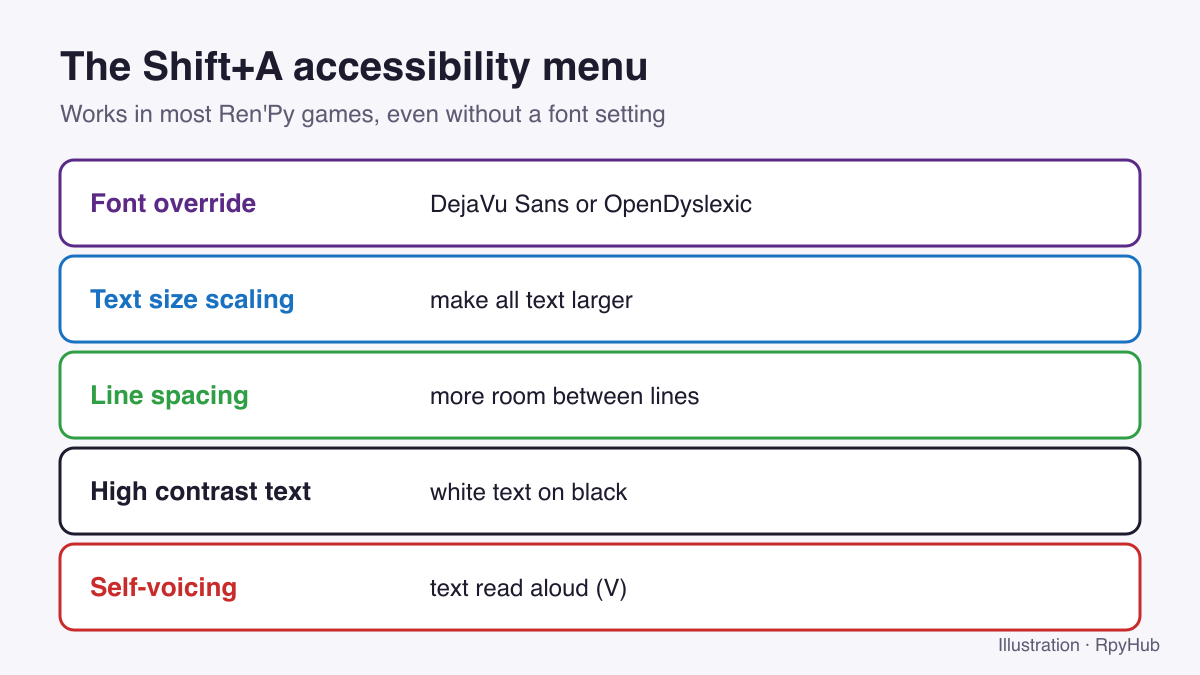
Ren’Py exposes these accessibility preferences (Ren’Py: screen actions, Preference(), retrieved 2026-10-12):
| Option | What it does |
|---|---|
| Font override | Replaces the game’s font with DejaVu Sans (clean and readable) or OpenDyslexic (designed for readers with dyslexia) |
| Text size scaling | Makes all text larger (or smaller) by a factor |
| Line spacing scaling | Adds space between lines |
| High contrast text | Shows white text on a black background |
| Self-voicing | Reads text aloud using your system’s speech voice |
Making Text Bigger: Step by Step
- Press Shift+A.
- Raise Text Size Scaling a little at a time; large jumps can make text overflow its box.
- If lines feel cramped, raise Line Spacing Scaling.
- If the game’s font is decorative or thin, switch Font Override to DejaVu Sans.
- Close the menu and check a few screens, including choices and the save menu.
If text overflows or gets cut off, step the size back down. Games designed for one font size don’t always have room for much bigger text.
Text Speed and Auto-Forward
These are in the game’s own Preferences (Esc → Preferences):
- Text Speed: how fast characters appear. Set it to maximum to show each line instantly.
- Auto-Forward Time: how long the game waits before moving to the next line in auto mode.
Auto mode is handy on phones and handhelds when you want to read without tapping.
Self-Voicing: Have the Game Read Aloud
Press V to toggle self-voicing. Ren’Py then reads dialogue and interface elements using your operating system’s speech engine: the Microsoft Speech API on Windows, the system voice on macOS, and espeak on Linux (which may need installing first). Voice and speed are changed in your system’s speech settings (Ren’Py: self-voicing, retrieved 2026-10-12).
High Contrast for Hard-to-Read Text Boxes
Some games use stylish but low-contrast text boxes. High contrast text replaces them with white text on black, which is much easier to read in bright light or on small screens.
On Phones and Handhelds
- Android APKs: if there’s no keyboard, check whether the game’s Preferences include an accessibility button.
- JoiPlay: map an on-screen button to Shift+A, or open it once with a connected keyboard; settings are remembered. See our JoiPlay guide.
- Steam Deck: map a back button to Shift+A in Controller Settings. See Ren’Py games on Steam Deck.
Frequently Asked Questions
How do I change the font size in a Ren’Py game?
Press Shift+A and raise Text Size Scaling. This works even if the game has no font size setting.
Can I change the font in a Ren’Py game?
Yes. In the Shift+A menu, choose DejaVu Sans or OpenDyslexic under font override.
How do I make Ren’Py text appear instantly?
Set Text Speed to maximum in the game’s Preferences.
Can Ren’Py read the text aloud?
Yes. Press V to toggle self-voicing, which uses your system’s text-to-speech voice.
Conclusion
Shift+A is the key to remember: it scales text, adds spacing, changes the font and enables high contrast in almost any Ren’Py game. Combine it with text speed and auto-forward in Preferences for comfortable reading on any screen.
More controls are in our Ren’Py keyboard shortcuts guide.






Comments
0