
Ren’Py Keyboard Shortcuts: Skip, Roll Back, Hide the UI and More
Every Ren’Py game shares the same set of default controls, so once you learn them, they work in almost any visual novel you play. Holding Ctrl skips text, Page Up or the mouse wheel rolls back, and H hides the text box so you can see the whole image.
This guide lists the default shortcuts from Ren’Py’s own keymap, grouped by what you want to do (Ren’Py documentation: keymap, retrieved 2026-10-11).
Key Takeaways
- Ctrl (hold) skips text; Tab turns skipping on and off.
- Page Up / mouse wheel up rolls back; Page Down / wheel down rolls forward.
- H or middle click hides the text box; S takes a screenshot.
- Shift+G opens the renderer menu, a quick fix for black screens.
- Developers can change these, so a few games use different keys.
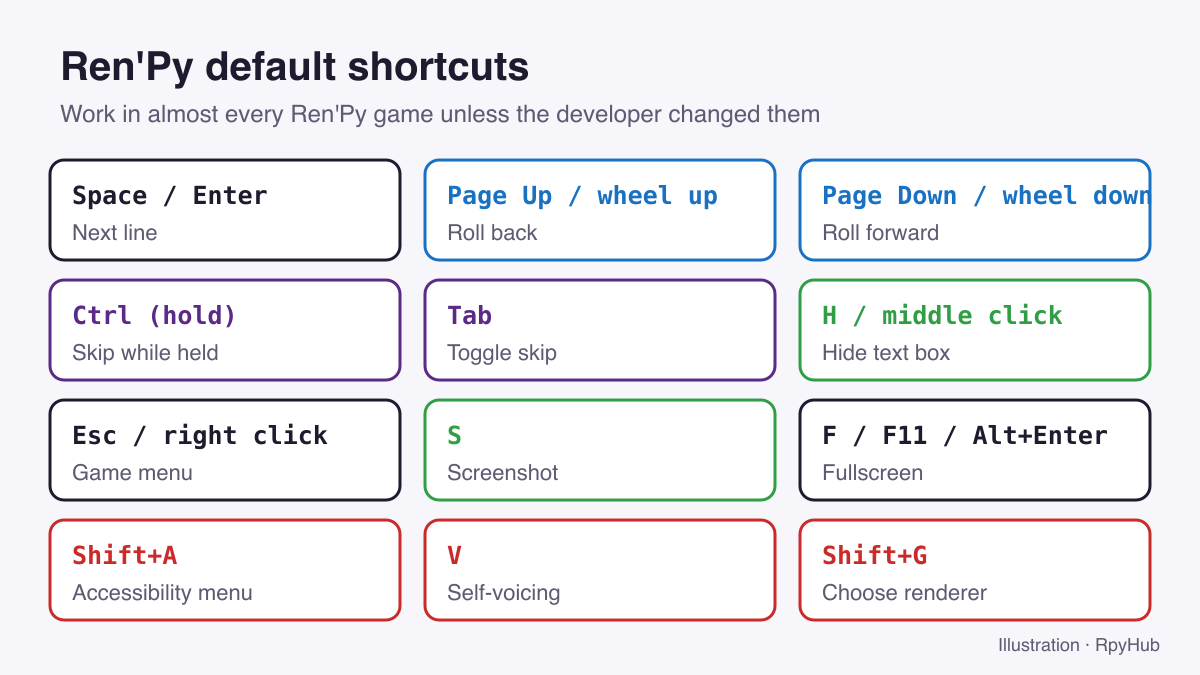
Reading and Advancing Text
| Key / mouse | What it does |
|---|---|
| Space, Enter, left click | Show the next line |
| Page Up, mouse wheel up | Roll back to earlier lines |
| Page Down, mouse wheel down | Roll forward again after rolling back |
| H, middle click | Hide the text box and menus (press again to show) |
Rollback is one of Ren’Py’s most useful features. It lets you go back through the story, including back to a choice, and pick differently. Some developers limit or turn off rollback in parts of their game, so it may stop at certain points.
Skipping Text
| Key | What it does |
|---|---|
| Ctrl (hold) | Skip while the key is held |
| Tab | Turn skip mode on or off |
By default, Ren’Py only skips text you have already read. To skip unread text too, open Preferences and switch Unseen Text on under skip settings. This is handy when replaying a game for a different route.
Menus, Screenshots and Fullscreen
| Key | What it does |
|---|---|
| Esc, right click | Open the game menu (save, load, preferences) |
| S | Take a screenshot (saved in the game folder) |
| F, F11, Alt+Enter | Toggle fullscreen |
| F1 | Open the help screen, if the game has one |
Accessibility Shortcuts
| Key | What it does |
|---|---|
| Shift+A | Open the accessibility menu (font size, text speed, contrast) |
| V | Turn self-voicing on or off (text-to-speech reads the screen) |
| Shift+C | Clipboard voicing (copies text so another screen reader can read it) |
The accessibility menu lets you change the font, enlarge text and adjust other display options even when the game’s own settings do not offer them.
Troubleshooting Shortcut: Shift+G
Shift+G opens the renderer menu. If a game shows a black screen, flickers or runs slowly, switching the renderer here often fixes it. Restart the game after changing it. More fixes are in our guide to Ren’Py games that won’t start.
Developer Shortcuts You Might See Mentioned
Some guides and forum posts mention keys like Shift+O (console), Shift+R (reload) and Shift+D (developer menu). These are part of Ren’Py’s keymap, but they only work when the developer has turned on developer mode or the console. In a normal release they usually do nothing.
Changing game files to unlock these tools can break your game or saves, and some developers ask players not to. If you are curious, make a full backup of your saves first: see where Ren’Py stores save files.
Playing on Android?
Android APKs use touch: tap to advance, and the game’s on-screen buttons handle skip, auto and menus. Rollback is usually a swipe or a dedicated button, depending on the game.
If you play PC games through JoiPlay, you can map keyboard keys to on-screen buttons. H and Page Up are the two most useful ones to add. See our JoiPlay guide.
Frequently Asked Questions
How do I skip text in a Ren’Py game?
Hold Ctrl to skip, or press Tab to toggle skipping. To skip text you have not read yet, enable Unseen Text in Preferences.
How do I go back in a Ren’Py game?
Press Page Up or scroll the mouse wheel up to roll back. Scroll down or press Page Down to roll forward again.
How do I hide the text box in Ren’Py?
Press H or click the middle mouse button. Press again to bring it back.
Where do Ren’Py screenshots go?
Press S to take one. By default it is saved in the game’s main folder.
Conclusion
The five shortcuts worth remembering: Ctrl to skip, Page Up to roll back, H to hide the text box, S for screenshots and Shift+G when the screen goes black. They work in nearly every Ren’Py game.
Haven’t installed a game yet? Start with how to install Ren’Py games, then pick something from the visual novel catalog.






Comments
0