
How to Install Ren’Py Games on Windows, Mac, Linux and Android (2026)
Ren’Py is a free, open-source engine for visual novels, and most games on RpyHub are built with it. Ren’Py games do not need an installer: you unpack the download and start the game. This guide shows the right file to open on each platform, how to keep your saves when a new version comes out, and how to fix the problems players run into most often.
Key Takeaways
- Unpack the archive first. Never start a game from inside the
.zip.- Start
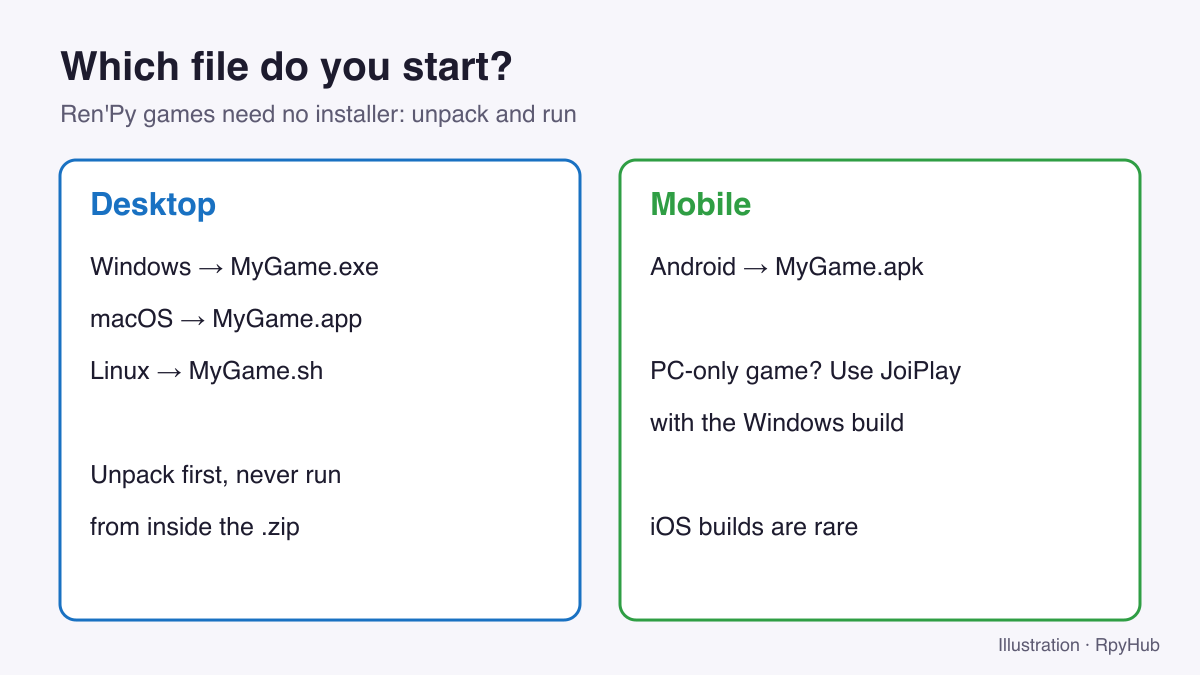
MyGame.exeon Windows,MyGame.appon macOS,MyGame.shon Linux, or install the.apkon Android.- Ren’Py keeps a copy of your saves outside the game folder, so a new version usually finds them on its own.
- Install updates into an empty folder, not over the old version.
Before You Start: What Is in a Ren’Py Download?
A Ren’Py PC download is usually one archive that works on Windows and Linux, and sometimes macOS too. After you unpack it, you get a folder like the one below. If you see these items side by side, you are in the right place.
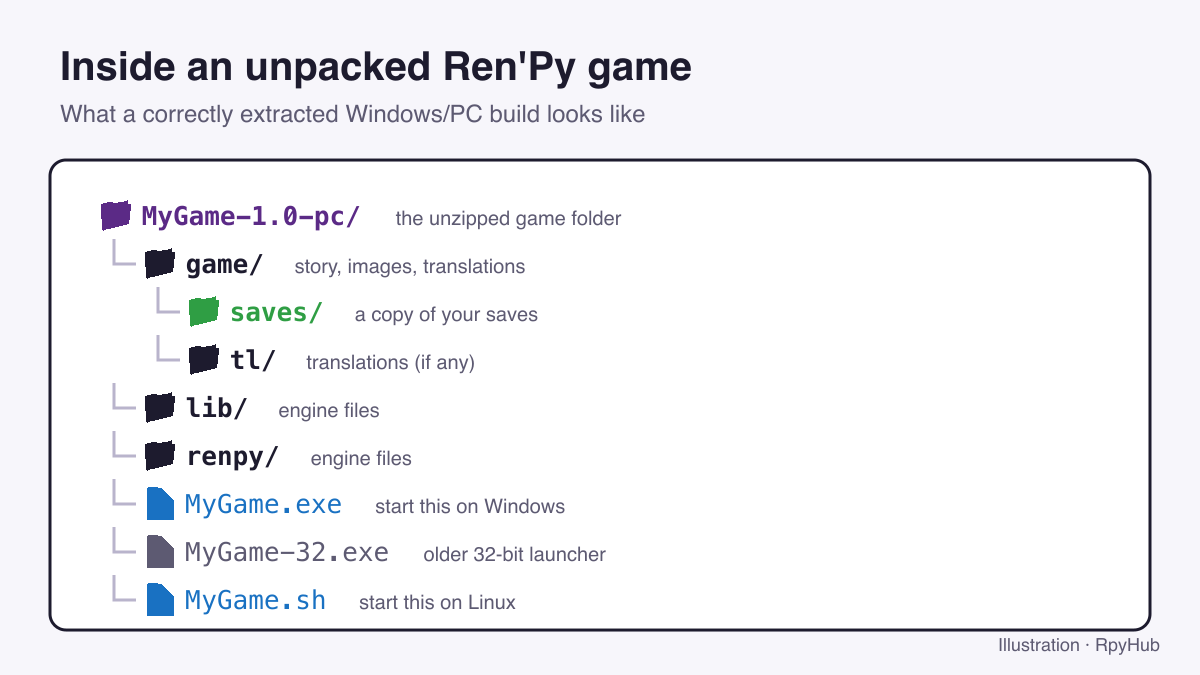
game/holds the story, images, translations and a copy of your saves.lib/andrenpy/are the engine. Do not move or delete them.MyGame.exestarts the game on Windows;MyGame.shstarts it on Linux.MyGame-32.exe, if present, is an older 32-bit launcher. Use the main.exeunless the developer says otherwise.
Installing on Windows
- Download the Windows or PC build from the game page. It is usually a
.zipfile. - Right-click the file and choose Extract All, or use 7-Zip for
.7zand.rararchives. Do not run the game from inside the archive. - Open the extracted folder and start the
.exefile that has the game’s name.
If Windows SmartScreen shows “Windows protected your PC”, click More info and then Run anyway. This appears for many small independent games that are not code-signed.
Keep game folders in a short path such as C:\Games\. Very long paths inside deep folders can cause “file not found” errors on Windows. See all Windows games.
Installing on macOS
- Download the Mac build and double-click it to unzip. You get a
.appfile. - Move the
.appinto your Applications folder. - The first time, right-click the app and choose Open, then confirm. Double-clicking an unsigned app the first time only shows a warning.
If macOS says the app “is damaged and can’t be opened”, open Terminal and type xattr -cr followed by a space, drag the app onto the Terminal window, and press Return. This removes the download quarantine flag; the app itself is not changed.
Browse Mac games.
Installing on Linux and Steam Deck
Ren’Py PC builds usually run on Linux directly. Extract the archive, then start the file ending in .sh. If it does not start, make it executable with chmod +x MyGame.sh, or tick Allow executing file as program in its properties.
On Steam Deck, switch to Desktop Mode, extract the game, then use Add a Non-Steam Game in Steam to launch it from Game Mode.
Browse Linux games.
Installing on Android
- Download the APK file on your phone.
- Open it. Android asks you to allow installs from the app you used (your browser or file manager). Allow it for that app only.
- Tap Install. You can turn the permission off again afterwards.
More games with an Android build are listed on the Android games page.
What if the game has no Android version?
Many Ren’Py games only ship a PC build. You can still play most of them on your phone with JoiPlay, an Android app that runs the Windows version. Our step-by-step JoiPlay guide for Ren’Py games covers the setup.
Updating to a New Version and Keeping Your Saves
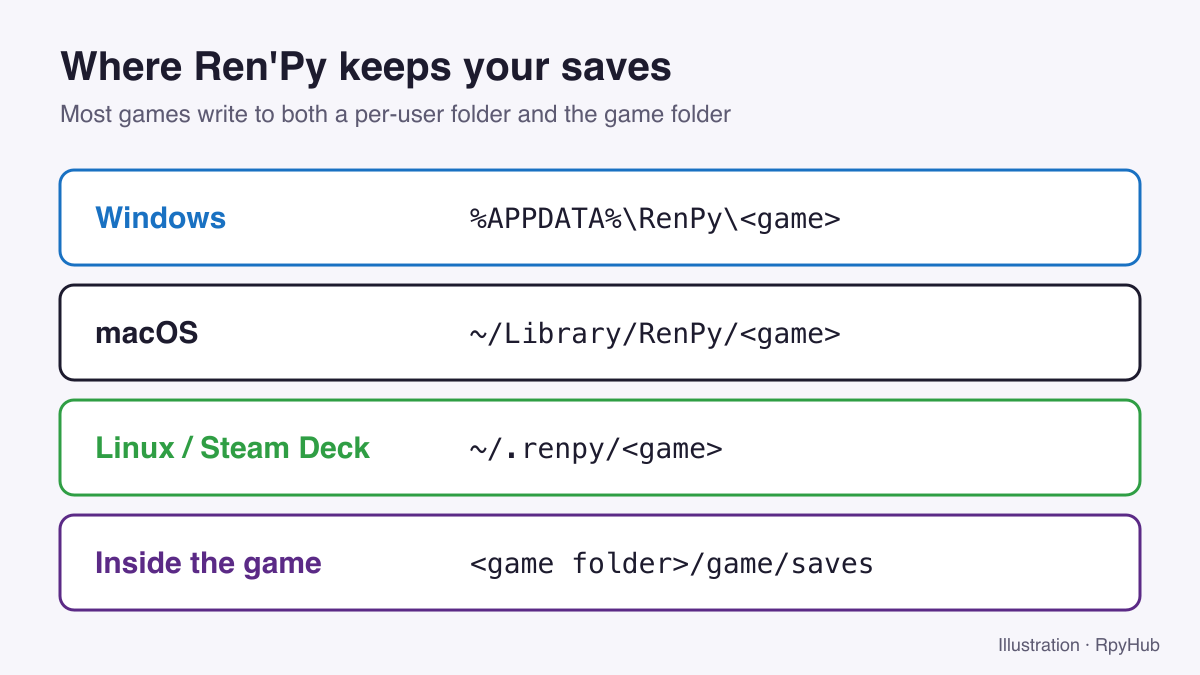
Ren’Py keeps a copy of your saves outside the game folder, so a fresh copy of the new version usually finds them on its own.
| System | Per-user save folder |
|---|---|
| Windows | %APPDATA%\RenPy\ + the game’s folder name |
| macOS | ~/Library/RenPy/ + the game’s folder name |
| Linux | ~/.renpy/ + the game’s folder name |
These are Ren’Py’s default locations (Ren’Py documentation: config.save_directory, retrieved 2026-10-11). Saves are also stored in the game/saves folder inside the game.
To update safely:
- Unpack the new version into a new, empty folder.
- Start it and check whether your saves appear.
- If they do not, copy
game/savesfrom the old version into the new one. - Keep the old version until your saves load, then delete it.
Some newer games also have Upload Sync and Download Sync buttons on the save screen. These use Ren’Py Sync to move saves between devices with a short code. Our guide to Ren’Py save files explains it, along with backups.
On Android, install the new APK over the old one without uninstalling first. Uninstalling deletes the app’s data, including saves. If Android shows “App not installed”, the new build was signed differently from the old one; back up your saves with the game’s own export option, if it has one, before uninstalling.
Common Problems
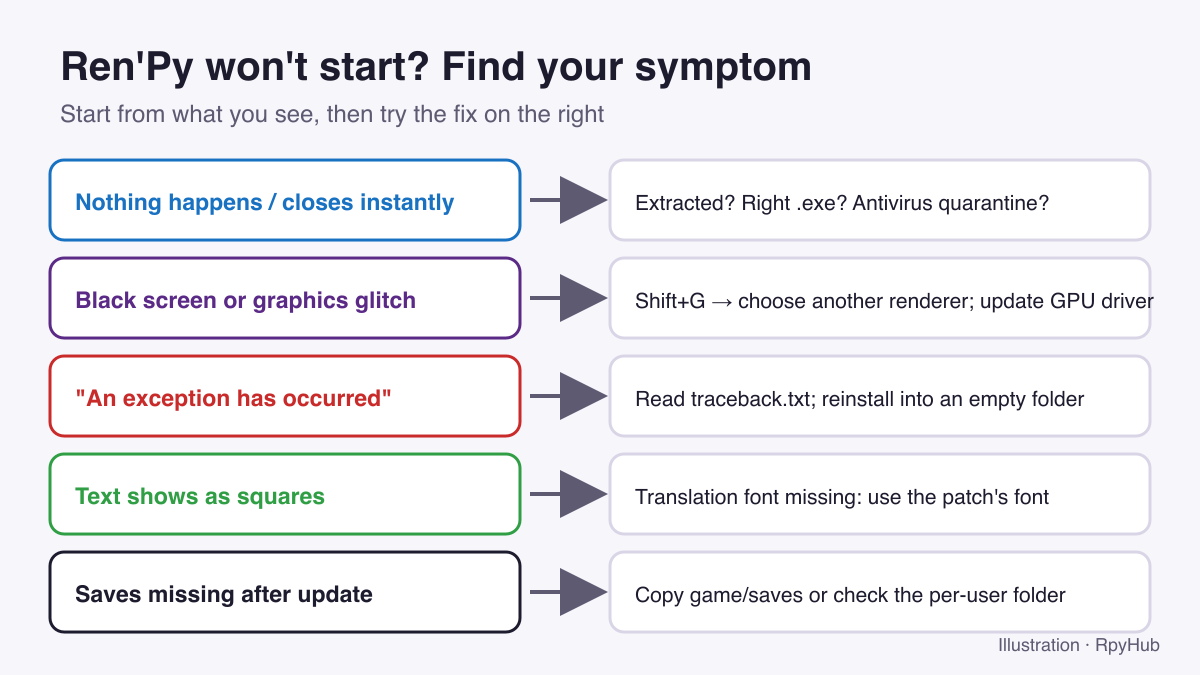
- Black screen or crash on start. Update your graphics driver. In a Ren’Py game you can also press Shift+G to choose a different renderer.
- Text shows as squares after installing a translation. The translation needs a font that contains your language’s characters. Use the font that came with the patch, or the version of the patch made for your game’s version. See how to install a Ren’Py translation patch.
- “Missing file” or script errors after an update. Install the new version into an empty folder instead of copying it over the old one.
- A download link no longer works. Use the Report button on the game page or the contact form.
For more fixes, including how to read Ren’Py’s error files, see Ren’Py game won’t start? Common errors and fixes.
Frequently Asked Questions
Do Ren’Py games need to be installed?
No. Ren’Py games on PC are portable: unpack the archive and start the launcher. Only Android APKs are installed like a normal app.
Which file do I open to start a Ren’Py game?
The .exe with the game’s name on Windows, the .app on macOS, and the .sh file on Linux.
Will updating a Ren’Py game delete my saves?
Usually not. Ren’Py keeps a copy of saves in a per-user folder, so the new version finds them. Back up game/saves before updating to be safe.
Can I play Ren’Py games on my phone?
Yes. Install the Android APK if there is one. For PC-only games, use JoiPlay.
Find Something to Play
Browse the full catalog, or start from visual novels or recently updated games. New to Ren’Py controls? Our Ren’Py keyboard shortcuts guide shows how to skip, roll back and hide the text box.






Comments
0